

Unveiling Windows 11’s Hidden Gem: God Mode
You’ve probably heard of or even used cheat codes in classic video games, where you type in a special command to become invincible or manipulate the game’s laws. Well, Microsoft has its own version of a ‘God mode’ hidden within Windows 11, and it offers a treasure trove of functionality—no cheat codes required. In this article, we’ll delve into this useful feature that allows users to navigate their system with the kind of efficiency that can transform your computing experience.
What is Windows God Mode?
At first glance, the term “God mode” might evoke thoughts of supernatural powers in gaming, but in the realm of Windows, it’s all about the accessibility of system functions. This feature doesn’t grant you mystical abilities, but it certainly provides a gateway to a myriad of administrative tools, settings, and shortcuts that are typically buried deep within nested menus.
Why Use God Mode?
Many PC users find themselves navigating through multiple clicks to reach essential settings, like adjusting power management options or managing devices. God Mode condenses these tasks into a single panel, providing a list of over 200 system settings in a simplified format. The beauty of God Mode lies in its efficiency; it cuts down on the time spent searching through complicated menus. Whether you’re a tech-savvy user or someone new to Windows, this feature promises to enhance your productivity immensely.
How to Enable God Mode
Excited to dive into Windows God Mode? Here’s how you can effortlessly set it up on your desktop:
Create a New Folder:
- Right-click on your desktop, then navigate to New > Folder. This simple step creates a blank folder on your screen.
Rename the Folder:
- You’ll want to give this folder a new identity. Rename it to:
GodMode.{ED7BA470-8E54-465E-825C-99712043E01C}
Make sure to copy it exactly as shown, including the punctuation.
- You’ll want to give this folder a new identity. Rename it to:
Watch the Transformation:
- Once you hit enter after renaming, your folder will transform into an icon that resembles a Control Panel. If it doesn’t change immediately, don’t worry; it may take a moment to display the new icon.
Accessing God Mode:
- Simply double-click the new icon, and voilà! A comprehensive window filled with a plethora of system settings and management options will appear.
Functions Available in God Mode
Once you’re in God Mode, you’ll be greeted with a list of various settings organized by category, making it easier to find what you need. Here’s a sneak peek into what you can access:
- Administrative Tools: Quick access to system management solutions.
- Power Options: Easily revise power plans or settings to optimize your PC’s energy consumption.
- Network and Sharing settings: Manage your network configurations and sharing options.
- User Accounts: Modify settings related to user accounts and permissions seamlessly.
Customizing Your God Mode Experience
God Mode isn’t just about access; it’s about making your Windows environment more personalized. By strategically utilizing this tool, you can create an interface that’s tailored to your needs. Focusing on the settings you use frequently saves you the hassle of navigating through the standard menus and allows for a more streamlined workflow.
Visual Aid
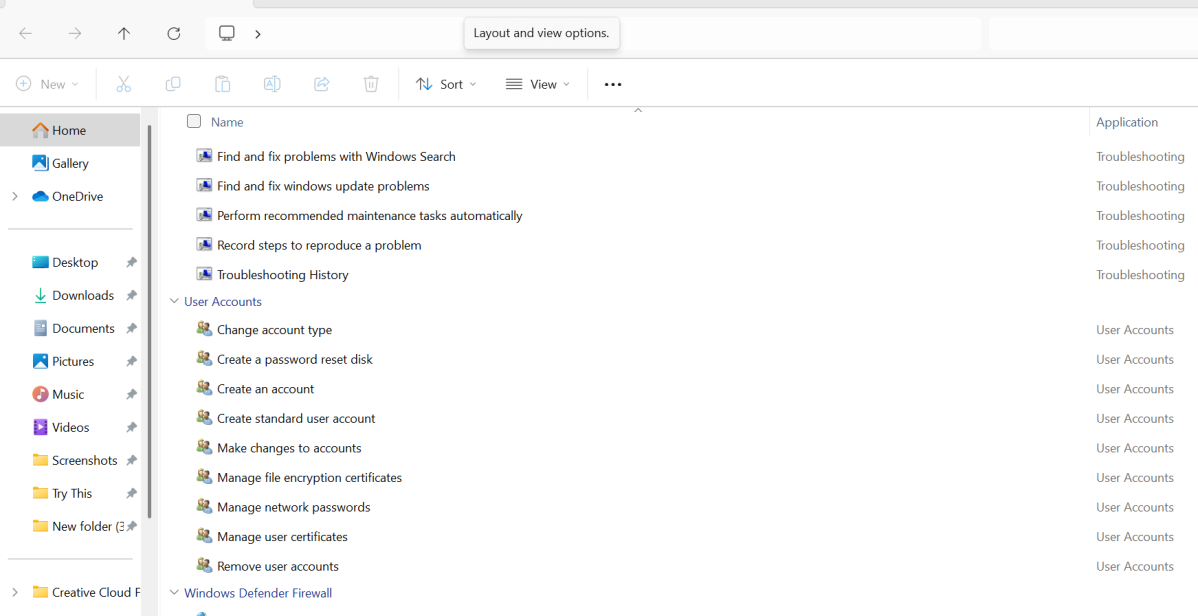
Image Credit: Dominic Bayley / Foundry
Enhancing Your Workflow
By incorporating God Mode into your daily PC usage, you’ll find that you can manage your system more effectively, removing unnecessary obstacles that slow you down. With everything from system settings to administrative tools available at a glance, your computing experience becomes not just simpler but also far more enjoyable.
If you’re interested in more handy tips like this, consider subscribing to our PCWorld Try This newsletter. You’ll receive various tech tricks delivered straight to your inbox, helping you navigate your digital life with ease.
Get Started!
Now that you’re equipped with the knowledge to activate and utilize Windows God Mode, it’s time to make your PC work for you. With just a few clicks, you can unlock this hidden functionality and supercharge your workflow. Explore the capabilities and take control of your Windows experience like never before!