
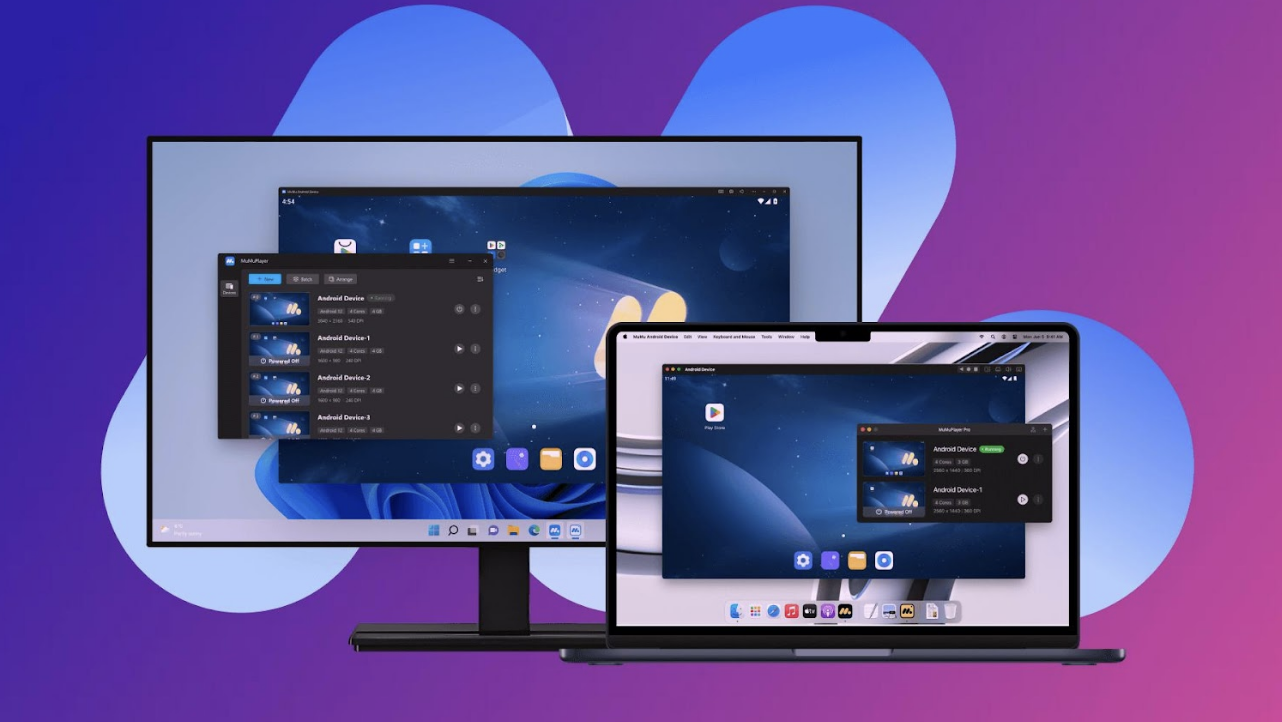
Mobile games have exploded in popularity, providing a vibrant gaming experience right at our fingertips. However, inherent limitations like small screens, touch controls, and battery issues often detract from serious gaming. Fortunately, a solution exists: emulators. They allow you to play Android games seamlessly on your PC, enhancing your gaming experience in ways you might have never imagined.
What You Actually Need
To enjoy your favorite Android games on PC, the primary requirement is an emulator. This software simulates a virtual Android environment on your computer, enabling you to run your mobile games with the full power of your PC. The added benefits are substantial—you have access to larger screens, eliminate battery drain, and prevent overheating that typically occurs during extended mobile gaming sessions.
Setting up an emulator is simpler than it may sound. Most emulators are free to download and function like any standard application, providing instant access to your game library. One popular choice among gamers is MuMuPlayer. It’s particularly favored for its ability to deliver smooth gameplay, especially in graphics-intensive titles. The ad-free experience further adds to its appeal, preventing interruptions that can disturb crucial moments in gameplay.
Remapping Controls Is the Real Upgrade
One of the most significant enhancements when switching from phone to PC gaming is the control system. Touch inputs are inherently limiting; they were designed for small screens and can often feel cumbersome. However, on PC, you have the freedom to customize controls according to your preferences.
With an emulator, you can remap controls to your keyboard, mouse, or a game controller. This capability allows for a more natural and precise gaming experience. For example, playing an action RPG becomes far more intuitive when using keyboard skill keys, while first-person shooters benefit immensely from mouse aiming. Plus, emulators give you the flexibility to save different control layouts for various games, simplifying the gaming experience each time you switch titles.
Running Multiple Accounts
Another noteworthy feature of emulators is the ability to run multiple instances of the same game simultaneously. This is particularly advantageous for players managing several accounts, whether it’s to collect daily rewards, participate in guild activities, or simply explore different game aspects. Instead of juggling multiple devices, you can effortlessly run multiple game accounts on a single computer without experiencing significant performance issues. This feature can save time and streamline gameplay, enhancing the overall efficiency of your gaming experience.
Getting Started
Getting up and running with an emulator is straightforward. Start by downloading the MuMuPlayer Android Emulator from their official website. Installation is similar to any regular program, and once it’s installed, you can sign in to the app store using your Google account. From there, simply search for your desired game and install it just as you would on your mobile device. Most popular mobile games are readily available and can be accessed easily.
Once you’ve completed the setup, the transformation in your gaming experience can be remarkable. The moment you launch a game that you’ve previously been playing on a small screen—only to see it beautifully fill a larger monitor with responsive controls—is exhilarating. You’ll quickly appreciate how these enhancements can make familiar games feel brand new and significantly enrich your overall gameplay.
By opting to play Android games on PC, you not only address the limitations of mobile gaming but also unlock a world of new possibilities. Whether it’s the improved visuals, customizable controls, or the convenience of managing multiple accounts, the transition offers gamers an enhanced experience worth exploring.